
How to Clean Your Email List in Mailchimp Before It Costs You
Mailchimp bills for unsubscribed contacts and only cleans addresses after they bounce. Here's how to use its own tools, then verify the export before re-import.
How to Clean Your Email List in Mailchimp Before It Costs You
Mailchimp cleans your list for you, just not when you’d want it to. It marks an address Cleaned after it bounces, so every dead mailbox costs you a bounce and a bit of reputation before Mailchimp lifts a finger, while the contacts you can’t even mail (unsubscribed, non-subscribed) still count toward the bill. Cleaning a Mailchimp list properly means two passes: use Mailchimp’s own tools for the statuses it already knows about, then verify the subscribed export before you re-import it, so the next campaign doesn’t manufacture a fresh batch of cleaned addresses. Here’s the workflow, with the help-center page behind each step.
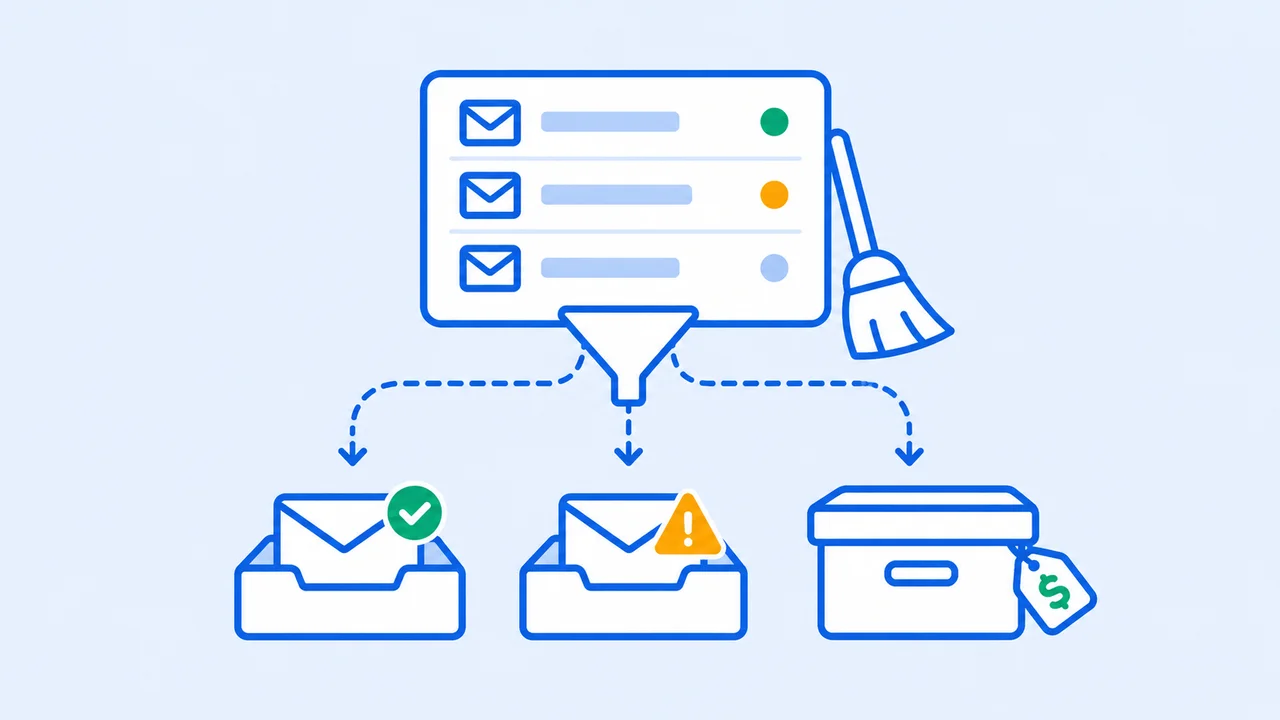
What does “cleaning” mean inside Mailchimp?
In Mailchimp, “cleaned” is a specific contact status, not a general tidy-up: cleaned contacts are addresses that hard bounced or repeatedly soft bounced, and Mailchimp won’t send to them again. Cleaning your list in the broader sense means dealing with every other status too, because each one decides whether a contact can receive marketing and whether it counts toward your monthly limit. Here’s the map, from Mailchimp’s contact types page.
| Status | Receives marketing email? | Counts toward contact limit? | What to do |
|---|---|---|---|
| Subscribed | Yes | Yes | Verify before big sends; prune the inactive |
| Unsubscribed | No | Yes | Archive unless you need them for suppression |
| Non-subscribed | No (transactional only) | Yes | Archive, or run a proper opt-in |
| Cleaned | No | No | Leave in place so they stay suppressed |
| Pending | No | No | Nothing; they haven’t confirmed opt-in yet |
| Archived | No | No | Unarchive if they come back |
Two rows catch people out. Cleaned contacts are free, and Mailchimp recommends keeping them in the audience rather than deleting, so the address stays blocked if it sneaks back in on an import. Unsubscribed contacts are not free. Someone who opted out two years ago is still a line on your invoice.
Which contacts are costing you money right now?
Mailchimp prices by contact tier and bills overages when you exceed the tier, so a bloated audience costs you every month whether you mail it or not. The pricing page states that overages apply if the contact or email send limit is exceeded, and on the Free plan (250 contacts at the time of writing) sending simply pauses. Your cheapest cleaning step doesn’t need a verifier at all: find the unsubscribed and non-subscribed contacts and archive them.
Archiving is the right tool because it’s reversible and it’s free. Per Mailchimp, archived contacts don’t count toward your billing tier, their data is preserved, and you can unarchive them from the contacts table or with an import. To do it in bulk: Audience, select the contacts (or a saved segment, then the header checkbox), Actions, Archive, type ARCHIVE to confirm.
Deleting is a different animal. Mailchimp’s delete contacts page is blunt about it: the action can’t be undone, the data is anonymized in reports, and “You can’t add a deleted contact back to your audience.” The only way back is if the person rejoins through your hosted form. Mailchimp says to delete for GDPR purposes only, and to archive everything else. I’d go further: an unsubscribe is the record that says “this person told you no.” Archiving keeps it. Deleting throws it away, and if the address ever comes back on a spreadsheet, you’re one import from a complaint.
How do you find and remove inactive subscribers in Mailchimp?
Segment on engagement, give the inactive segment one honest chance to respond, then unsubscribe or archive whoever doesn’t. Mailchimp’s identify inactive subscribers page gives you two ready-made conditions: Campaign interaction “did not open” all of the last 5 emails (or all emails within the last 3 months), or Contact rating is 1 star. Add “Email Date added is before” a cutoff so brand-new subscribers don’t get swept up.
Inactive subscribers cost money, drag engagement down, and after long enough some of them turn into bounces. Mailchimp’s page on stale addresses says audiences with a lot of them “can lead to high rates of bounces, spam complaints, and unsubscribes,” and recommends you delete or reconfirm them. (I’d read “delete” as “archive,” for the reasons above.)
The re-engagement step is where most teams lose their nerve. Send the segment one campaign that says plainly you’re going to keep emailing and asks them to click if they want that. Mailchimp’s guidance is that if they don’t open or click, archive or unsubscribe them; its re-engagement page shows how to automate that with post-send actions. Do it. A subscriber who hasn’t touched anything in six months is a bounce waiting for a mailbox to be decommissioned.
For a truly stale audience, one you haven’t mailed in a long time, Mailchimp recommends reconfirming instead: export the subscribed CSV, bulk unsubscribe those addresses (the tool takes up to 3,000 addresses per paste), then send a reconfirmation message with your signup form link. Mailchimp’s own warning: sending that reconfirmation through Mailchimp to unengaged contacts may hurt your sending reputation, so send it from your own mail service where you’re permitted to. And verify the stale list first. A reconfirmation blast into dead mailboxes is still a bounce storm, whichever server it leaves from.
Why doesn’t Mailchimp catch bad addresses before you send?
Because its cleaning is reactive. Mailchimp learns an address is dead when the receiving server says so, and the thresholds are generous: hard bounces are cleaned automatically and immediately, but a soft-bouncing address gets 7 attempts if the contact has no activity, and up to 15 if they’ve engaged before, until Mailchimp converts it to a hard bounce. That’s up to 15 bounces per address, each one recorded against your domain.
There is a predictive layer, but it doesn’t do what people think. Omnivore, Mailchimp’s abuse-prevention system, scans imported addresses you haven’t mailed before and estimates how many are likely to be spam traps or to generate complaints and hard bounces. When the predicted rate is too high it disables sending to that audience. It’s an audience-level block, not a cleaning tool, and Mailchimp says it “doesn’t provide specific addresses that are likely to bounce.” So a risky import either goes through untouched or gets your whole audience frozen, and neither outcome tells you which rows were bad.
Then there’s Mailchimp’s stance on third-party cleaning, which the SEO how-tos skip. Its list cleaning services page says the company seldom recommends them, that most services flag risky addresses rather than remove them, and that “Mailchimp should never be used as a list cleaning service.” The condition under which it calls them viable: you have “a good record of subscriber permission” and your collection practices follow its guidelines.
I agree with more of that than you’d expect from someone who sells verification. Verification cleans a list you earned; it can’t launder a bought one, and if your problem is complaints or spam traps, the fix is your signup process, not a CSV round-trip. But for a permission-based audience, “flags rather than removes” is the whole point. You want the flags. You decide what happens to each bucket, and you decide it before the send instead of after the bounce.
How do you verify a Mailchimp list before re-importing it?
Export the subscribed contacts, run them through a verifier, act on each result bucket, then import the file back with “Update any existing contacts” checked and a tag on the batch. The whole loop is four Mailchimp screens and one verification job, and the order matters: verify the subscribed file only, because the other statuses are already handled by the steps above.
Here’s the routine I’d run before any campaign to contacts you haven’t mailed recently.
- Export the audience. Audience, Export audience, Export CSV. Mailchimp splits the download into separate CSVs by status (subscribed, unsubscribed, non-subscribed, cleaned), and only Owners and Admins can export. Take the subscribed file.
- Verify it. Upload the subscribed CSV to a bulk verifier. A real verifier checks syntax and MX records, then asks the mail server whether the specific mailbox exists, without sending anything (mechanics in the email verification guide). Roughly, you get back valid, invalid, risky or catch-all, and unknown.
- Act per bucket, don’t nuke. Invalid goes into Mailchimp’s bulk unsubscribe tool or gets archived; either way it never bounces. Catch-all and risky get a tag and a separate, smaller send, because catch-all domains are common on real business addresses and deleting them throws away reachable people. Unknowns get re-checked later rather than mailed blind.
- Import the results back. Add contacts, Import contacts, upload the file, and check Update any existing contacts. Two gotchas from that page: blank fields overwrite existing data, so keep every column you exported, and you can only import one status at a time. Add a tag like “verified 2026-05” so you can segment on it.
- Mail the verified segment first, then watch the bounce report. The bands are in acceptable email bounce rate; the short version is under 2%, and the famous 0.3% figure is Gmail’s spam-complaint limit, not a bounce limit.
There’s a Mailchimp integration if you’d rather not move CSVs by hand. The manual loop works with any tool, though, and it’s worth doing once so you understand which status each address lands in.
On cost: VerifyEmail bills one credit per address verified. Duplicates and failures on our side are never charged, so the address you exported twice doesn’t show up on the bill. The pricing page covers how credits map to volume.
The tradeoff, stated plainly: this adds a step before every meaningful send, and a verified list still isn’t a permission record. If people didn’t opt in, no verifier fixes that. Reconfirm them or let them go.
Frequently asked questions
Does Mailchimp clean my email list automatically? Only after the damage. Mailchimp moves an address to Cleaned when it hard bounces, or after 7 soft bounces (15 if the contact had prior activity). It doesn’t check whether a mailbox exists before you send, so every new bad address costs you a bounce first.
Do unsubscribed contacts count toward my Mailchimp bill? Yes. Subscribed, unsubscribed, and non-subscribed contacts all count toward the monthly contact limit. Cleaned, pending, archived, and deleted contacts don’t. Archiving a large unsubscribed pool is the fastest legitimate way to drop a tier.
Should I archive or delete contacts in Mailchimp? Archive by default. It’s free, reversible, and keeps history. Deleting is permanent and Mailchimp won’t let you re-import a deleted address. Mailchimp says to delete for GDPR requests only.
Can I re-import a cleaned contact in Mailchimp? Not through a normal import; Mailchimp skips bounced and unsubscribed addresses already in the audience, and cleaned records can’t be edited. If a valid address was cleaned by mistake, add the corrected address as a new contact. Cleaned addresses aren’t billed, so the duplicate record costs nothing.
How often should I verify a Mailchimp audience? Before any send to contacts you haven’t mailed in a while, and on a regular cadence for everyone else. A quarterly pass on the subscribed export, plus a check on every new import before its first campaign, keeps stale addresses from turning into cleaned ones.
What I’d actually do first
Archive the unsubscribed and non-subscribed contacts today; that’s the bill. Build the inactive segment, send it one re-engagement email, and archive the silence; that’s the reputation. Then export the subscribed file, verify it, and re-import with a tag before the next campaign; that’s the bounces you’ll never see. Mailchimp will keep cleaning after the fact. Your job is to make sure there’s nothing left for it to find.
Ready to run the subscribed export through? Get Started Free. It includes 100 free credits, no credit card required.
Written by
Ryan Sullivan , Email Deliverability & Operations
Ryan has spent over a decade cleaning lists and protecting sender reputation for outbound teams and ESP marketers, and writes about the parts of email deliverability you usually learn the hard way.